support@dragon-dealz.com
 +1 (888) 303-8337








Introduction
You set everything up. The listing is live. Status shows active. You searched for your product, and it’s nowhere to be found.
No impressions. No organic traffic. No sales. Just a listing sitting in Seller Central that Amazon’s search engine is completely ignoring.
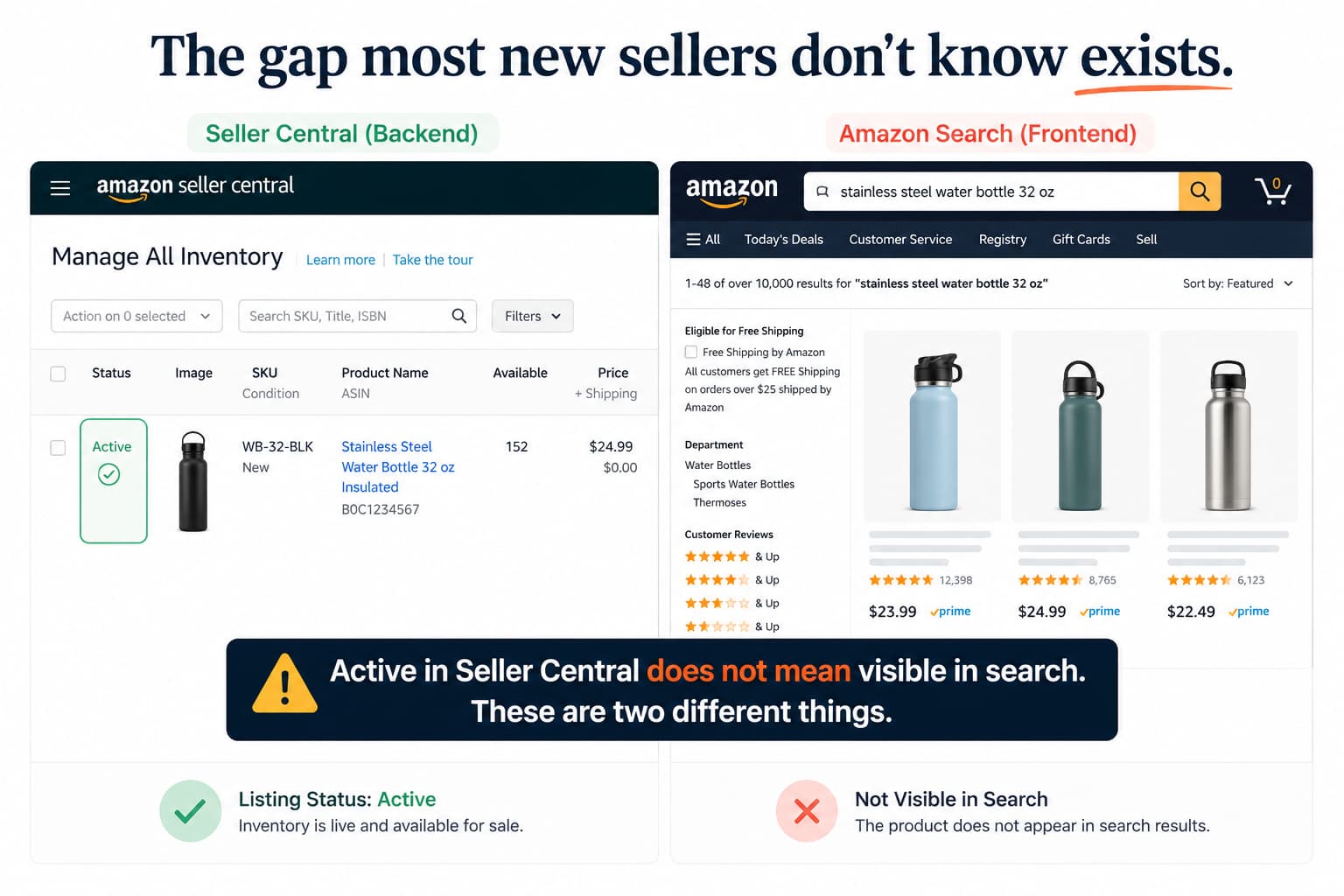
If your Amazon listing isn’t showing up in search and you can’t figure out why, you’re dealing with one of the most common and frustrating problems new and experienced sellers face after a product launch. The listing being active does not mean it’s visible. Those are two completely different things on Amazon’s platform.
This page breaks down exactly why your new Amazon listing isn’t appearing in search, which specific cause applies to your situation, and what to do about it in the right order so you don’t lose the critical early days of your product launch to a fixable visibility problem.
How Amazon Search Visibility Actually Works for New Listings
Before diagnosing the problem, it helps to understand what Amazon actually does when a new listing goes live.
When you create a listing, Amazon’s indexing system needs to process it before the product can appear in search results. This isn’t instant. Amazon has to crawl the listing content, evaluate the relevance of your title and backend search terms, assign the listing to appropriate browse nodes and keyword categories, and determine where it belongs in search results for which queries.
For a complete, well-optimized listing with no compliance issues, this process typically takes 24 to 72 hours. Some listings take up to a week, particularly in categories with higher review or compliance requirements.
But here’s what most sellers don’t know. Even after indexing is complete, a brand new listing with zero sales history has no ranking data. Amazon’s algorithm ranks results based on relevance and performance signals.
A new listing has relevance signals from its content but no performance signals at all. That means even a perfectly indexed listing can show up on page 8 or page 12 for its target keywords, effectively invisible to buyers without active PPC campaigns pushing it forward.
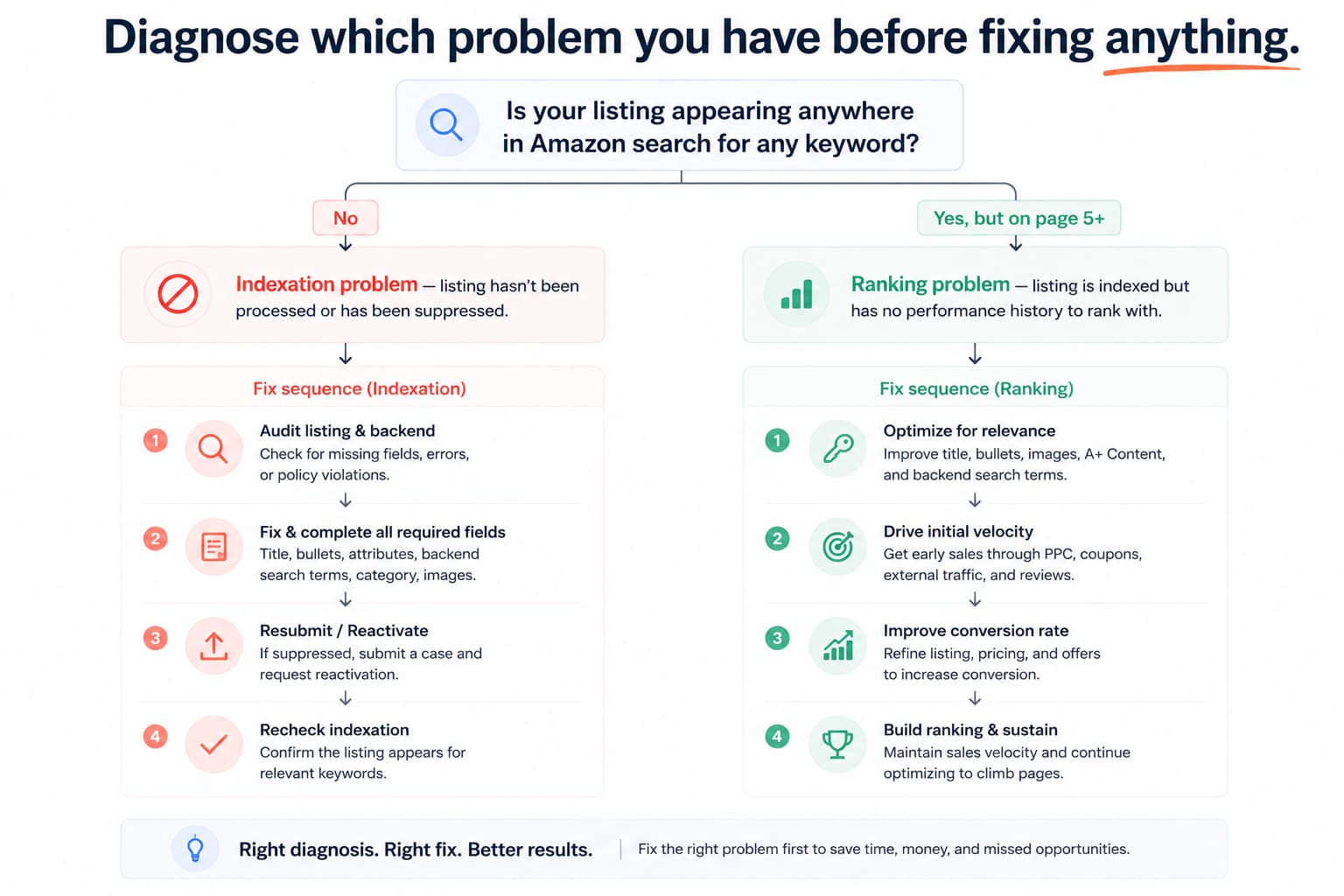
The two problems, not indexed at all versus indexed but not ranking, look identical from the outside. Both result in your Amazon product not appearing in search. But they need completely different fixes.
Why Your New Amazon Listing Is Not Showing in Search — The Real Causes
There are six distinct reasons a new listing fails to appear in Amazon search. Most sellers assume it’s one thing and fix that while the actual cause sits untouched.
Cause 1 – The Listing Hasn’t Been Indexed Yet (Processing Delay)
This is the most common cause for listings that went live in the last 24 to 72 hours. Amazon’s indexing system processes new listings in batches, and during high-volume periods like product launch seasons or post-Prime Day catalog updates, processing can take longer than usual.
Before assuming something is wrong, confirm when the listing went live and check whether 72 hours have passed. If it hasn’t, this may simply be a waiting problem rather than a fixing problem.
To check if your listing is indexed at all, search your ASIN plus one of your target keywords in Amazon from a logged-out or incognito browser. If the product appears in that search, it’s indexed. If it doesn’t appear, you have a confirmed indexation issue to investigate.
Cause 2 – Your Listing Has Amazon Search Suppression
Amazon search suppression is different from a listing being inactive. A suppressed listing exists in the catalog but has been removed from search results by Amazon’s compliance system. The listing status can still show Active in Amazon Seller Central while being completely invisible to buyers.
Suppression on a new listing is usually triggered by:
- A main image that doesn’t meet Amazon’s technical requirements (non-white background, product filling less than 85% of the frame, text overlays or watermarks present)
- Missing required attributes for the category that are needed before the listing can appear in search
- A pricing flag where the listed price is outside what Amazon considers a reasonable range for the category
- Title or bullet point content that violates Amazon’s listing policy in ways the automated compliance scanner flags immediately
Check for suppression by going to Manage All Inventory in Seller Central, using the filter dropdown, and selecting Suppressed. If your new listing appears there, the suppression reason field will tell you which compliance issue triggered it.
Cause 3 – Your Title and Backend Search Terms Aren’t Indexed for Target Keywords
Amazon keyword indexing is the process by which Amazon associates your listing with specific search queries. If your target keywords don’t appear in your title, bullet points, or backend search terms, Amazon has no reason to show your listing when buyers search for those terms.
This is one of the most common reasons new Amazon products are not visible even after the indexing processing window has passed. The listing is indexed, it exists in Amazon’s catalog, but it’s only indexed for the keywords Amazon found in your content. If you optimized for the wrong keywords, used vague language, or left your backend search terms empty, your listing simply isn’t connected to the search queries your buyers are using.
The fix requires adding your primary and secondary keywords to your title in a natural, readable way, including them across your bullet points where relevant, and filling your backend search terms with additional keyword variations using single spaces, no commas, no repeated words, and staying under 250 bytes.
Cause 4 – Your Listing Is in the Wrong Category or Browse Node
Amazon organizes its catalog through a category and browse node structure. When a listing is assigned to the wrong category or an overly broad browse node, Amazon’s algorithm struggles to determine what search queries the product is relevant for.
A listing placed in the wrong category can be indexed and technically live, but rank so poorly for the intended search queries that it’s functionally invisible. It may appear for broad irrelevant queries and not appear at all for the specific queries your buyers are actually using.
Check your category assignment by looking at the Browse Classification section of your Edit Listing page. Verify that the category and sub-category match as specifically as possible to your actual product type. The more precise the node, the more clearly Amazon understands what your listing is and which searches it belongs in.
Cause 5 – The Listing Is Part of a Variation With a Parent Conflict
If your new Amazon listing is set up as a child variation under a parent ASIN, visibility issues on the parent listing can affect the child’s searchability. A parent with compliance problems, suppression flags, or an incorrect variation theme can prevent child ASINs from appearing independently in search results.
This cause is easy to miss because the child’s list looks completely normal on its own. Check the parent ASIN directly for any suppression flags or attribute issues. Also, verify that the variation theme (size, color, style) is consistent between the parent and all children, and that the relationship is correctly structured for the category.
Cause 6 – New Listing With No Sales History or Velocity (Ranking Problem, Not Indexation)
If your listing passes the indexation check — meaning it does appear when you search ASIN plus keyword — but it’s showing on page 6, 8, or beyond for your target keywords, you don’t have an indexation problem. You have a ranking problem caused by zero sales history.
Amazon’s algorithm ranks new listings below established ones because it has no performance data to evaluate. No sales velocity. No conversion rate history. No click-through rate. Without those signals, the algorithm defaults to placing the new listing in a lower position while it waits for data to build.
This is sometimes called the new listing ranking gap, and it’s normal. But it doesn’t resolve on its own. Without an active strategy to generate early sales velocity, a new listing can stay buried for weeks while competitors with established history continue to dominate the top positions.
What This Visibility Gap Is Costing Your Launch
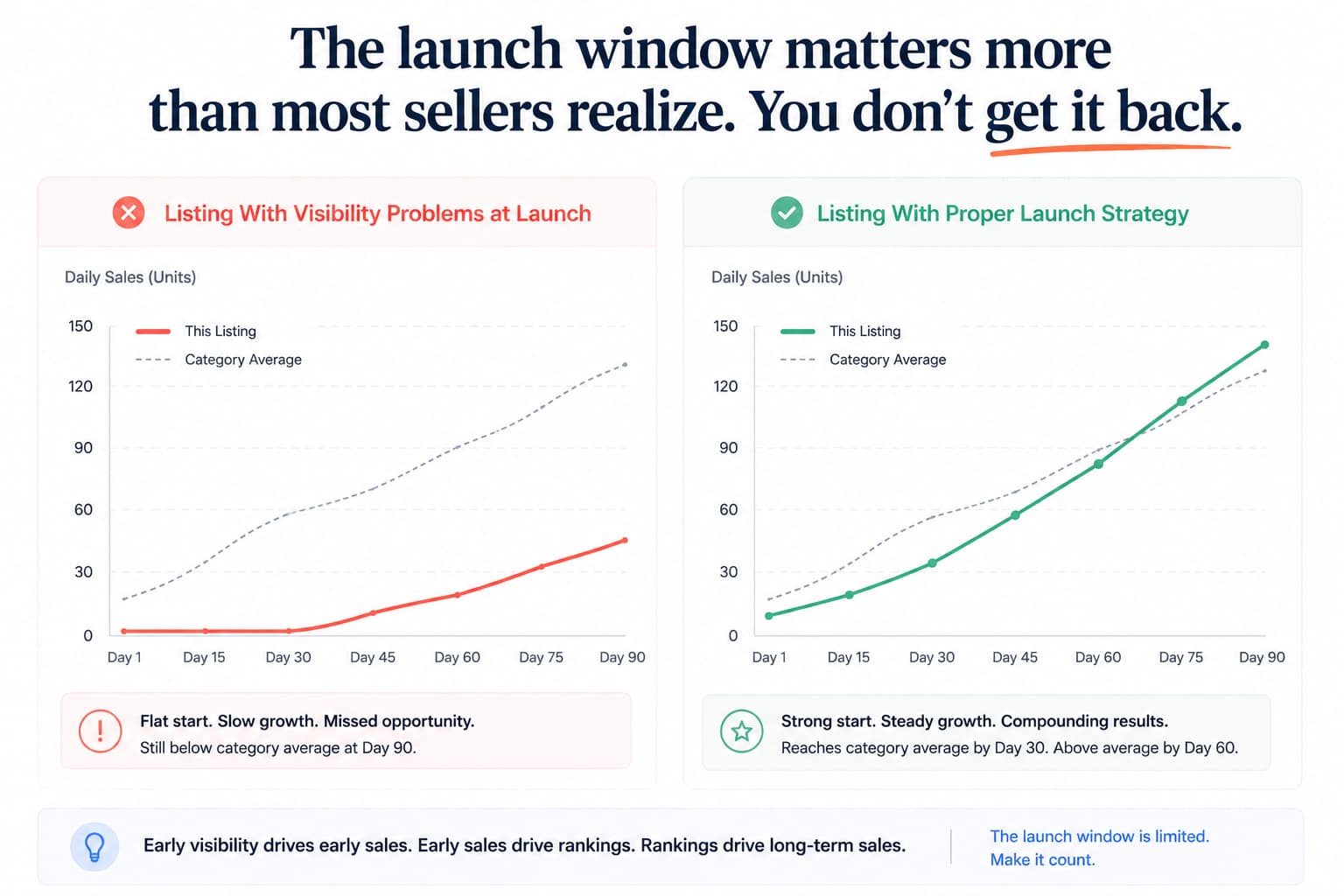
The first two to four weeks after a new product goes live are the most important period for its long-term trajectory on Amazon. Amazon’s algorithm gives new listings a brief window — often called the honeymoon period — where it monitors early performance signals closely and uses them to determine where the listing should rank going forward.
If your listing spends that window invisible due to an indexation issue or buried on page 8 due to a ranking problem, you’re not just missing early sales. You’re missing the data-collection window that sets your baseline rank.
A listing that generates strong sales velocity, good conversion rates, and positive review signals in its first 30 days gets ranked significantly higher than one that generates nothing. The gap between a well-launched listing and a poorly launched one compounds over time because rank drives traffic, traffic drives sales, and sales drive rank further.
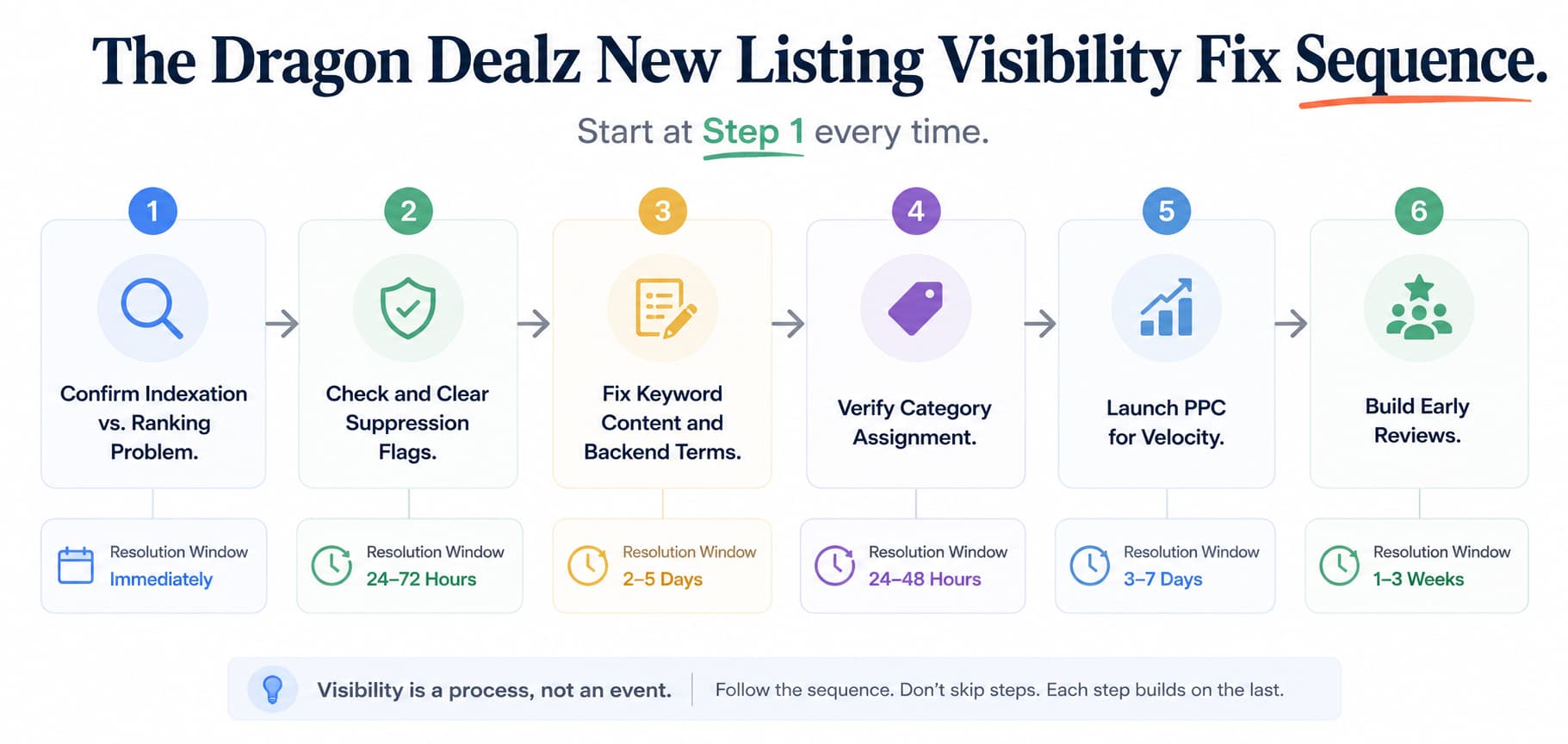
How to Fix Amazon Listing Not Showing in Search — Step by Step
Work through these in the sequence below. Fixing ranking before fixing indexation is working on the wrong problem.
Step 1 – Confirm Whether the Issue Is Indexation or Ranking
Search your ASIN plus your primary target keyword on Amazon from a logged-out incognito browser. If the listing doesn’t appear at all in that search, you have an indexation problem. If it appears but is on page 4 or beyond, you have a ranking problem.
This single check determines which half of the fix sequence you need.
Step 2 – Check and Clear Any Suppression Flags
Go to Manage All Inventory in Seller Central. Filter by Suppressed. If your listing appears, read the suppression reason and fix the flagged issue immediately.
The most common fixes at this stage:
- Replace the main image with a fully compliant version (pure white background, product at 85%+ of frame, no text or props)
- Fill all required attribute fields that are currently blank
- Adjust the listing price if a fair pricing flag is triggered
- Remove any policy-violating language from the title or bullet points
Save the listing and allow 24 to 48 hours for Amazon’s compliance system to re-evaluate.
Step 3 – Fix Keyword Indexation in Title and Backend Search Terms
If the listing isn’t suppressed but still isn’t indexed for your target keywords, the content needs to be updated.
Add your primary keyword naturally into the product title. Include secondary keywords across your bullet points in context. Fill the backend search terms field completely using single spaces between terms, no commas, no punctuation, no repeated words, staying under 250 bytes.
After saving, wait 24 to 48 hours and recheck indexation using the ASIN plus keyword search method.
Step 4 – Verify Category and Browse Node Assignment
Open Edit Listing and check the Browse Classification section. Confirm that the category and sub-category are as specific and accurate as possible for your product type.
If the category is incorrect, update it to the correct node. Category changes can take 24 to 72 hours to reflect in search results.
Step 5 – Launch PPC Immediately to Build Early Velocity
Once indexation is confirmed, the fastest way to address the Amazon listing visibility issues caused by zero ranking history is a structured PPC launch campaign.
Run an auto campaign at a moderate daily budget for the first 7 days to identify which search terms Amazon associates with your listing. Simultaneously, run exact-match campaigns on your 3 to 5 primary keywords at competitive bids.
The goal in this phase is not ACOS efficiency. The goal is to generate early sales on your target keywords so Amazon’s algorithm starts collecting performance data and begins moving your listing up in organic rank. Early PPC sales feed the velocity signal that organic ranking is built on.
Step 6 – Request Early Reviews Through Compliant Channels
Amazon search visibility and Amazon ranking for new listings are both improved by early review velocity. A listing with even 5 to 10 reviews converts meaningfully better than one with zero, which improves unit session percentage, which improves organic rank signals.
Use the native Request a Review button in Seller Central for every order within the 5 to 30-day eligible window. If you’re brand registered and have fewer than 30 reviews, enroll in Amazon Vine to generate protected early reviews that won’t be filtered by the standard authenticity system.
What Most Sellers Get Wrong With Amazon Product Launch Issues
They Wait for Organic Visibility That Isn’t Coming
The most expensive mistake new sellers make is launching a listing and waiting for Amazon to naturally surface it in search. That’s not how the platform works for new products. Amazon surfaces listings that already have performance data. A new listing with no history needs PPC to generate the first wave of data that organic ranking is built on.
Waiting without running ads during the launch window means losing the honeymoon period entirely. The listing stays buried. No sales data is generated. The algorithm has nothing to work with. And the ranking gap that could have been closed in 30 days takes 90 days or more to address from a standing start.
They Fix the Listing Content Without Checking Suppression First
Sellers who notice their listing isn’t appearing in search often go straight to rewriting the title or adding keywords. But if the listing is suppressed due to an image compliance issue, no amount of keyword optimization will make it appear. The suppression blocks everything downstream.
Always check for active suppression flags before making content changes. Fixing the wrong layer of the problem wastes the launch window on improvements that won’t take effect until the underlying suppression is resolved.
When to Escalate to Seller Support
If you’ve confirmed indexation, cleared all suppression flags, verified category assignment, and launched PPC campaigns, but your new Amazon product is still not visible in search after 7 to 10 days, the issue likely requires direct escalation.
Some indexation failures trace back to backend catalog errors that aren’t visible from inside Seller Central. Some variation structure issues require Amazon’s technical team to manually correct the parent-child relationship. Some category assignment problems need a support case to resolve because the correct node isn’t available through the standard Edit Listing interface.
Open a Seller Support case referencing the specific ASIN, describe the indexation steps you’ve already taken, and request a manual review of the listing’s catalog status. Provide the date the listing went live and the date you confirmed it wasn’t indexing properly. This documentation gives the support team a clear starting point and typically produces a faster resolution than a generic inquiry.
Dragon Dealz works with sellers dealing with Amazon product launch issues at every stage, from indexation failures to suppression cases to launch velocity strategies that get new listings ranking in the shortest time possible. We handle the diagnosis, the fix sequence, and the escalation so your launch window isn’t lost to a problem that should have been resolved in the first week.
FAQs
search even
Active status means the listing exists in the catalog, not that it’s visible in search. Check for suppression flags first, then confirm keyword indexation using the ASIN plus keyword search method.
For a complete, compliant listing, indexation typically takes 24 to 72 hours. Listings with compliance flags or missing required attributes may not index until those issues are resolved.
It’s a ranking problem caused by zero sales history. Launch PPC campaigns immediately to generate early velocity and give Amazon’s algorithm the performance data it needs.
Search your ASIN plus the target keyword on Amazon from a logged-out incognito browser. If your listing appears, it’s indexed. If it doesn’t, it isn’t.
Yes. An incorrect or overly broad browse node makes it harder for Amazon to match your listing to relevant search queries, reducing visibility even on an indexed listing.
Your Listing Is Live – Now Make Sure Buyers Can Actually Find It
An Amazon listing not showing up in search is not something that fixes itself with time. Every day the listing is invisible is a day of lost sales, lost velocity data, and lost launch momentum that the algorithm would have used to rank you higher.
Check for suppression first. Confirm keyword indexation. Verify your category assignment. Launch PPC on day one. Build early review velocity through compliant channels. And escalate to Seller Support if the listing still isn’t visible after working through the full sequence.
The launch window is short. The ranking signals you build in the first 30 days set the trajectory for the next 12 months.
If you’d rather not navigate that process alone, Dragon Dealz is ready to run the full launch diagnostic and fix sequence with you.